
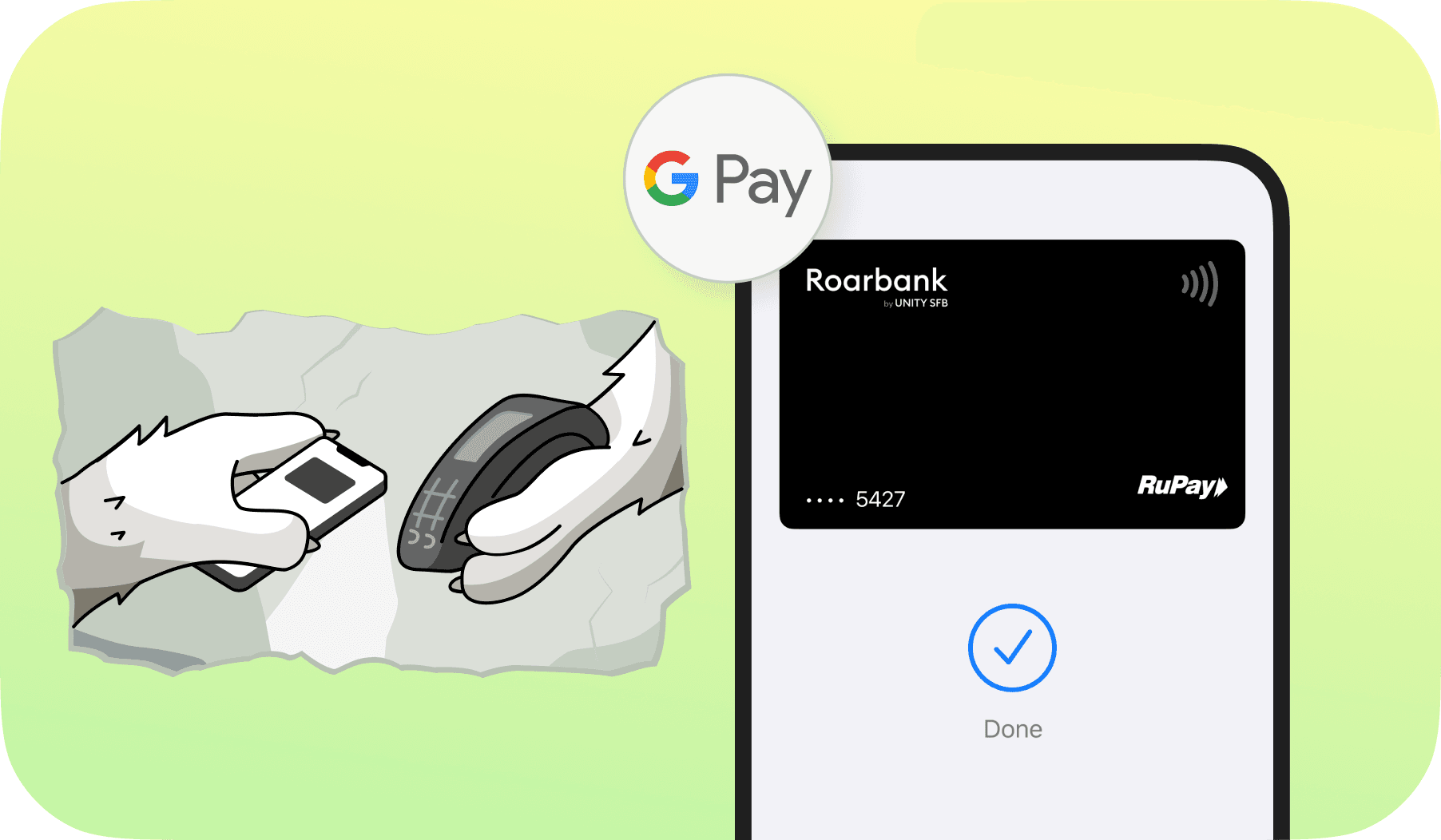
How to Add Your Credit Card in Google Pay?
Nearly everyone who frequently uses physical cards understands how messy their wallets can get at times, especially if they own many cards. Another annoyance is missing out on credit card rewards simply because you forgot your card at home, or ransacking your wallet each time you're at the checkout. However, there's a more convenient method: add credit card to Google Pay.
Google Pay is the solution you need because it turns your mobile device into a secure digital wallet that holds all your cards.
This guide will show you how to link card to GPay, which cards are supported, and how to fix common verification errors. You'll also learn how to link cards, understand NFC "Tap to Pay" and UPI payments, fix errors and failures, and get a breakdown of transaction limits and convenience fees.
Before You Start: Supported Cards and Prerequisites
To use your credit card on Google Pay, you need an Android phone that enables Near Field Communication (NFC) to support the 'Tap to Pay' feature when checking out at stores. It should also be turned on in your phone settings. Unfortunately, iPhone users don't have full NFC support in Google Pay because iOS in India has limited NFC functionality.
Many major Indian banks, including HDFC, SBI, ICICI, Axis, and Kotak, allow adding Visa and MasterCard cards for NFC transactions. RuPay credit cards, however, work a bit differently. You can link these cards for UPI QR payments, a feature Visa and MasterCard don't support.
Before you try to connect your card to GPay, first open your bank's mobile app, check your card settings, and make sure 'Contactless Payments' or 'International Usage' is enabled. It's a simple step that prevents many errors.
Step-by-Step: How to Add Credit Card to Google Pay
Follow these simple steps:
- Launch the Google Pay app, then tap your profile picture in the top-right corner.
- Choose "Pay with Credit or Debit cards" among the options displayed or "RuPay Credit Card on UPI" depending on the type of card you have.
- Scan the card details with your camera to automatically capture them.
- To enter it manually, input the card number, expiry date, CVV, and the registered name.
- This is where Google will contact your bank to verify the card via email or SMS text (OTP).
- Make sure the mobile number on your phone matches the one registered with the bank to avoid verification issues.
- Enter the OTP.
- Once it is verified, your card becomes ready for use. Fortunately, adding your credit card to Google Pay generates a virtual token that keeps your real card details safe.


Level up your wallet — download Roarbank now


How to pay with a credit card on GPay?
There are multiple ways you can make payments with your Google Pay-connected credit card.
- Unlock your phone and position its back near the payment terminal symbol.
- Wait for the blue checkmark and beep.
- Unlike Visa and MasterCard, you can use RuPay credit cards to scan standard UPI QR codes at local stores or any outlets that accept this payment method.
- Aside from UPI QR payments, you can't use Visa or MasterCard credit cards for P2P transactions; they're strictly for merchant terminals (POS) or online bill payments.
- If you want to make payments for electricity bills, TV subscriptions, or internet within the GPay app, simply select your credit card as your payment source.
Troubleshooting: Why Can't I Add My Card?
You may encounter issues when trying to connect your card to GPay. Here are some common ones and how you can resolve them:
- An error message saying 'Contact Your Bank': This usually pops up when the bank has flagged the tokenisation request or the card is disabled for online or contactless use. You can solve it by either calling your bank or checking its app settings.
- Multiple accounts and device conflicts: If you have the same credit card on an old device or a different Google account, we recommend removing it from the previous source. You should also clear Google Play Services cache if the app freezes during setup.
- Network issues: Sometimes you may not receive the OTP on time due to poor network coverage. So make sure you're in a place with a more stable network.
Transaction Limits and Fee Structures
There's a spending or purchase limit on your Google Pay-enabled credit card. When you connect your credit card to GPay, the temporary limit (for the first 24 hours) is usually ₹5,000for security reasons. The standard limit, on the other hand, depends on the bank's limit for contactless payments. It may require a PIN or your signature, but it's often ₹5,000 without a PIN.
There are also fees you pay for transactions. Google Pay usually charges a convenience fee of approximately 0.5% to 1% on credit card bill payments. However, when you pay merchants via the NFC-enabled 'Tap to Pay' feature, there's no extra fee, but the merchant pays the Merchant Discount Rate.
Maximizing Rewards
Linking your credit cards to Google Pay gives you extra value on every purchase. Your earnings will include reward points or miles, as well as Google Pay scratch cards on eligible payments. It's like a combined reward system where they get more from spending the same amount.
Google Pay also makes it easy to track your transactions by displaying everything in one place. With this feature, you can follow your monthly credit card expenses without digging through your receipts.
Conclusion
Connecting your credit card to Google Pay gives you the best of both worlds: security and convenience. Although the setup isn't perfect and may be prone to hiccups such as verification errors, it's definitely worth the effort since it lets you leave your physical wallet at home. Add your credit card to Google Pay today and experiment with a small transaction to test the 'Tap to Pay' feature.
FAQs
Yes, it is. Google Pay uses tokenisation, which means your actual card details are replaced with a unique, encrypted virtual account number. So your actual data isn't stored on the phone or shared with merchants.
In practice, you can add unlimited cards, but the bank may impose a limit. In most cases, users can easily add more than 5 cards.
Yes, as long as you have the card details and the registered mobile number for OTP verification.
That happens because you can't use standard credit cards for P2P transactions; only merchant and bill payments are supported.
Remove the card and add it again. Also, update your bank app and enable contactless or international payments.

